If a report submission encounters an error that require override, user can request error override from the lender. This guide explains how the feature works and what steps to follow.
How to Use Request Report Error Override
When a report submission cannot be processed due to an error that lender can override, the assignment’s report details page will display a button Request Override.
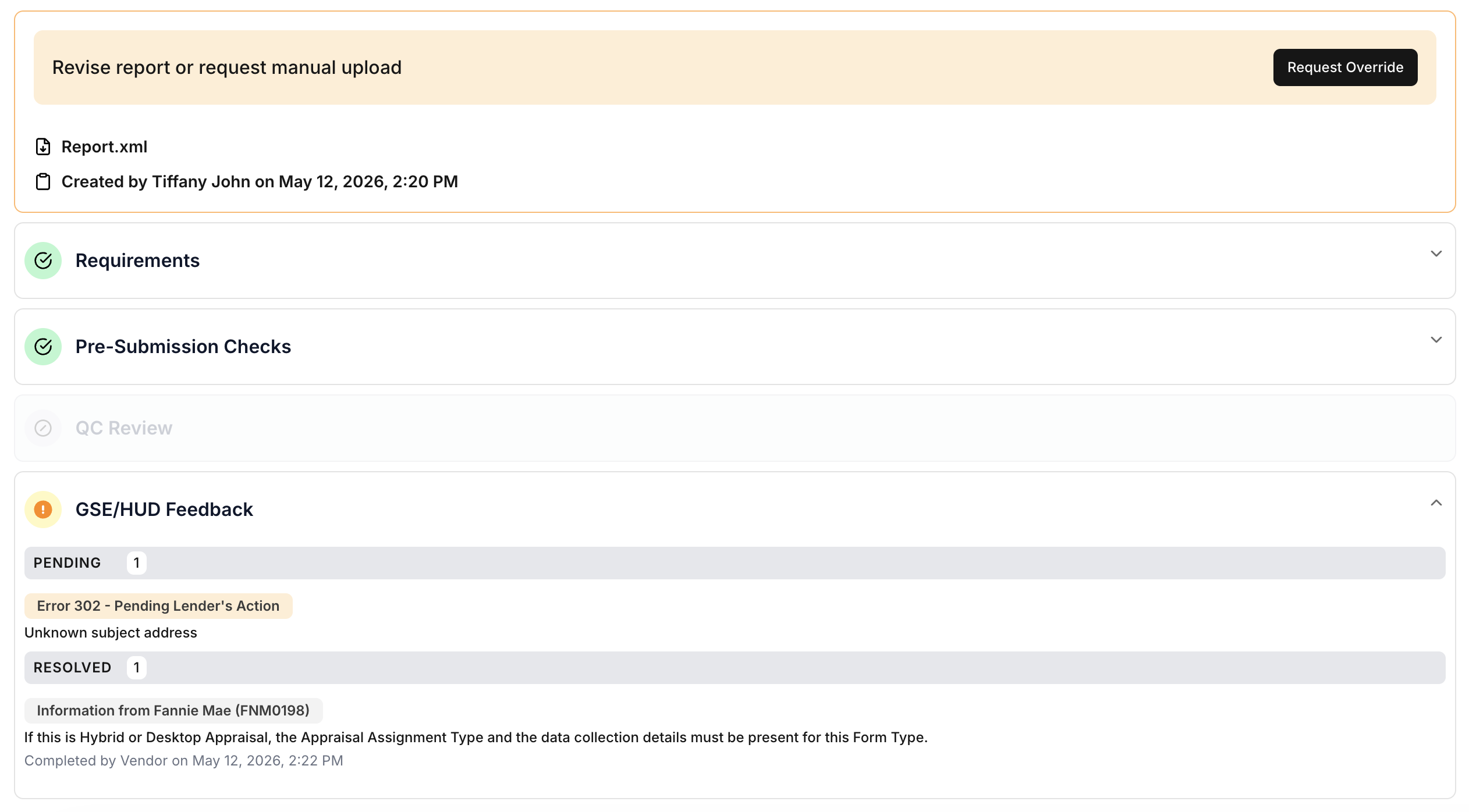
Clicking this button will open a dialog with instructions and a step-by-step guide.
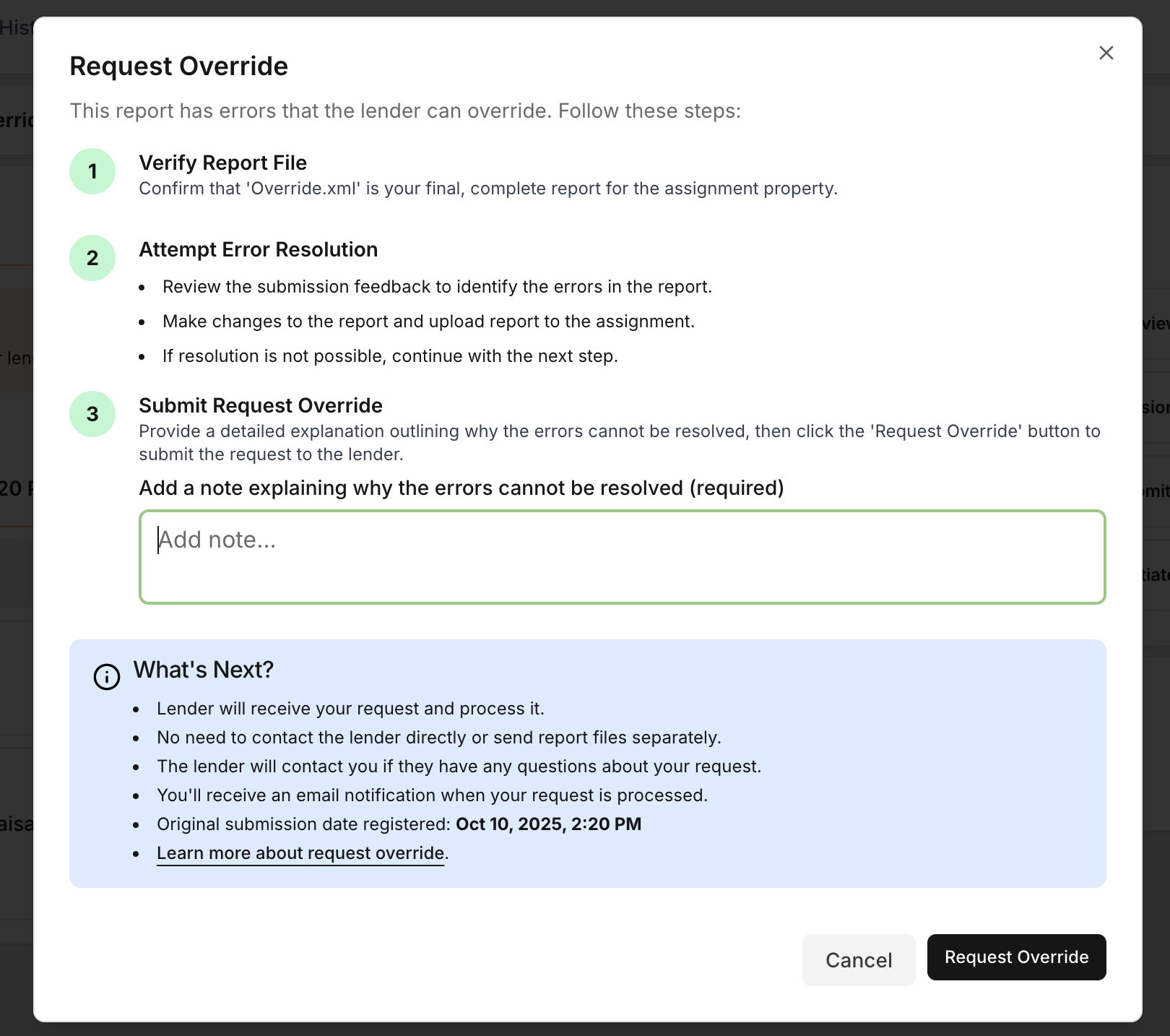
Steps to Proceed
Verify Your Report
Ensure your uploaded correct report file and it accurate and fully complete.Attempt to Resolve the Error
Review any feedback and, if possible, make corrections to the report. If you can’t resolve the error, continue to the next step.Add Note
Explain why error can be resolved and need override assistance from lender.Request Override
Click the Request Override button in the dialog. Your lender will be automatically notified - no need to send emails or upload additional files.
When the override request is received by the lender, the status will automatically change to "Override Requested".
Important Notes
You do not need to contact the lender directly or send files by email.
You will receive an email confirmation after your request is processed.
The system will capture the original submission date as the official upload time.
If further information is required, your lender will reach out to you.
Need More Help?
For report-specific questions, contact the lender via urgent note from the assignment.
For technical issues with the submission platform, email support@dwellingblocks.com.
Was this article helpful?
That’s Great!
Thank you for your feedback
Sorry! We couldn't be helpful
Thank you for your feedback
Feedback sent
We appreciate your effort and will try to fix the article